
Comdata Card Help
for Comdata App Users
Alerts & Notifications
Protecting our cardholders’ security is a top priority. By protecting that security, we are helping you and your company avoid the risks of identity theft and fraud, which can cost you money. In addition, we aim to keep you and your cardholders informed on card declines that are not fraud-related.
Your company’s Mastercard Administrator will sign up your company for the program, and then you will receive an enrollment email. Follow the instructions in the email to confirm your participation. Once enrolled, you will receive text message alerts each time our risk management system identifies a suspicious transaction on your Mastercard. Then, you can reply to the message and mark it as fraudulent or legitimate.
If you identify a transaction as fraudulent, each additional transaction will be declined. However, you will receive a text message with each declined transaction, allowing you to override the declined authorization. If you override, you can swipe your card again and continue the transaction as normal, only if the transaction is for the same amount and from the same merchant. If you receive a declined transaction you don’t recognize, there is no need to respond, as the transaction was not authorized.
This is very beneficial, as you can continue using your card even if the card number is compromised.
Standard data and text rates will apply. However, cardholders only receive text messages if suspicious activity is identified on their card, fraud is confirmed, or a transaction is declined.
We strongly encourage you to remain enrolled in the program to protect yourself and your company from credit card fraud. However, if you wish to unsubscribe, reply STOP to any text message you receive from the program.
Functionality outside of the United States depends on your mobile phone carrier and your type of device. Alerts and Notifications will function outside the U.S. in most cases, but this is not always guaranteed.
For questions about your enrollment, contact your company’s card Administrator. Call the 1-800 number on the back for other questions about using your card.
For assistance with your account, please get in touch with our Cardholder Services team at either of the numbers below:
-
- Call 1-800-741-6060 and follow the voice prompts.
- For Spanish cardholders, call 1-800-266-3914 and follow the voice prompts.
You will need your card number when calling.
Contact Cardholder Services at the 1-800 number on the back of your card, and our service team can help you initiate the dispute process.
Your Fleet Administrator has approved you to add your Comdata card with the number shown in the e-mail to a new or existing Comdata mobile app account.
Upon discovering that your Comdata Card is missing or damaged, contact Cardholder Services at 1-800-741-6060 to block your card and order a replacement.
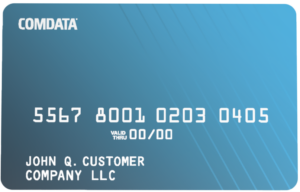
The card number will include the small numbers above the embossed card number on the card’s front side. Please get in touch with your fleet administrator for assistance if you do not have the card.
We don’t have that feature available at this time.
Your available balance is displayed on your card dashboard.
Steps
- Select your Card.
- View your available balance on the card dashboard.
- Select Transfer Funds.
- Select Express Code.
- Enter the Express Code number.
- Select View Balance to see the available balance before transferring funds.
Add a bank account to transfer funds from your card to your bank account.
Steps
- Select your Card.
- Tap Card Settings.
- Select Add Bank Account.
- Enter your bank account number.
- Re-enter the account number to confirm.
- Enter your bank routing number.
- Select your account type.
- Check the box confirming you are the account owner or an authorized user.
- Tap Add Bank Account.
Note: It may take up to 3 business days for your bank account to be verified before transferring to this bank account is available.
- Select your card.
- Tap Transfer Funds.
- Select Another Driver (Peer-to-Peer).
- Enter the recipient’s email address.
- Enter the transfer amount.
- Add an optional message.
- Select Review & Confirm.
- Verify the details and submit the transfer.
Important: Peer-to-peer transfers cannot be reversed once submitted.
- Select your card.
- Tap Transfer Funds.
- Select Express Code.
- Enter the Express Code number.
- (Optional) Select View Balance.
- Select Review & Confirm.
- Confirm the transfer to your card.
- Select the card you want to move funds from.
- Tap Transfer Funds.
- Select Card to Card.
- Select the card to transfer funds to.
- Enter the transfer amount.
- Select Review & Confirm.
- Review the information and submit the transfer.
- Select your Card.
- Tap Transfer Funds.
- Select Create Comchek.
- Enter the Comchek draft number.
- Re-enter the draft number to confirm.
- Enter the amount.
- Select Review & Confirm.
- Review the information and submit the transfer.
1. Locate Comdata in the Apple or Google app store and install it.
2. Launch the app and tap Register on the login screen.
3. Choose the appropriate user type:
- Fleet Owner (Account Administrator who has NOT self-registered on Driven Web)
- Driver (Cardholder or Driver)
- Guest (For users exploring or inquiring about an account)
4. Fill out the registration form with your first name, last name, mobile phone number, and email address. Enter your Password and confirm your password, and then check the box to agree to the Terms and tap Submit.
5. If you selected Fleet Owner, you must also provide the ZIP/Postal Code (linked to billing address) and Account Number.
6. Verify Your Contact Information
- A verification code will be sent to your mobile phone via text message.
- Enter the code in the app to verify your phone number.
- A second verification code will be sent to your email address.
- Enter the email code in the app to complete verification.
Other Resources
Privacy Policy
Cardholder Terms and Conditions
- End User License Agreement
- To obtain a copy of your Cardholder Agreement and/or Fee Schedule, contact our Cardholder Services team by calling the number on the back of your card and requesting to speak with an agent.